Configure Pycharm - Developer Guide
As a student, you can get the license for free via the Git Developer Pack
Assumption: The Qunicorn core repository has already been cloned.
Assumption: Poetry and Python have already been set up as in the step above
Overwrite IBM_TOKEN=”yourToken” and EXECUTE_CELERY_TASK_ASYNCHRONOUS=”Boolean” in .env file
Ctrl + Shift + A → Search for “Switch Python Interpreter” → Select Poetry Python version
Ctrl + Shift + A → Search for “Plugins” → Switch to the Marketplace (top center)
Install Grep Console
Diagrams.net integration (if you want to generate domain models)
EnvFile and Requirements. For correct highlighting in .env and .flaskenv and better integration
Customize code style:
Double-click on ./instance/qunicorn_core.db to automatically configure a database connection that can be searched and manipulated
Configure debugger and logger from the following paragraphs
Configure Debugger for Pycharm
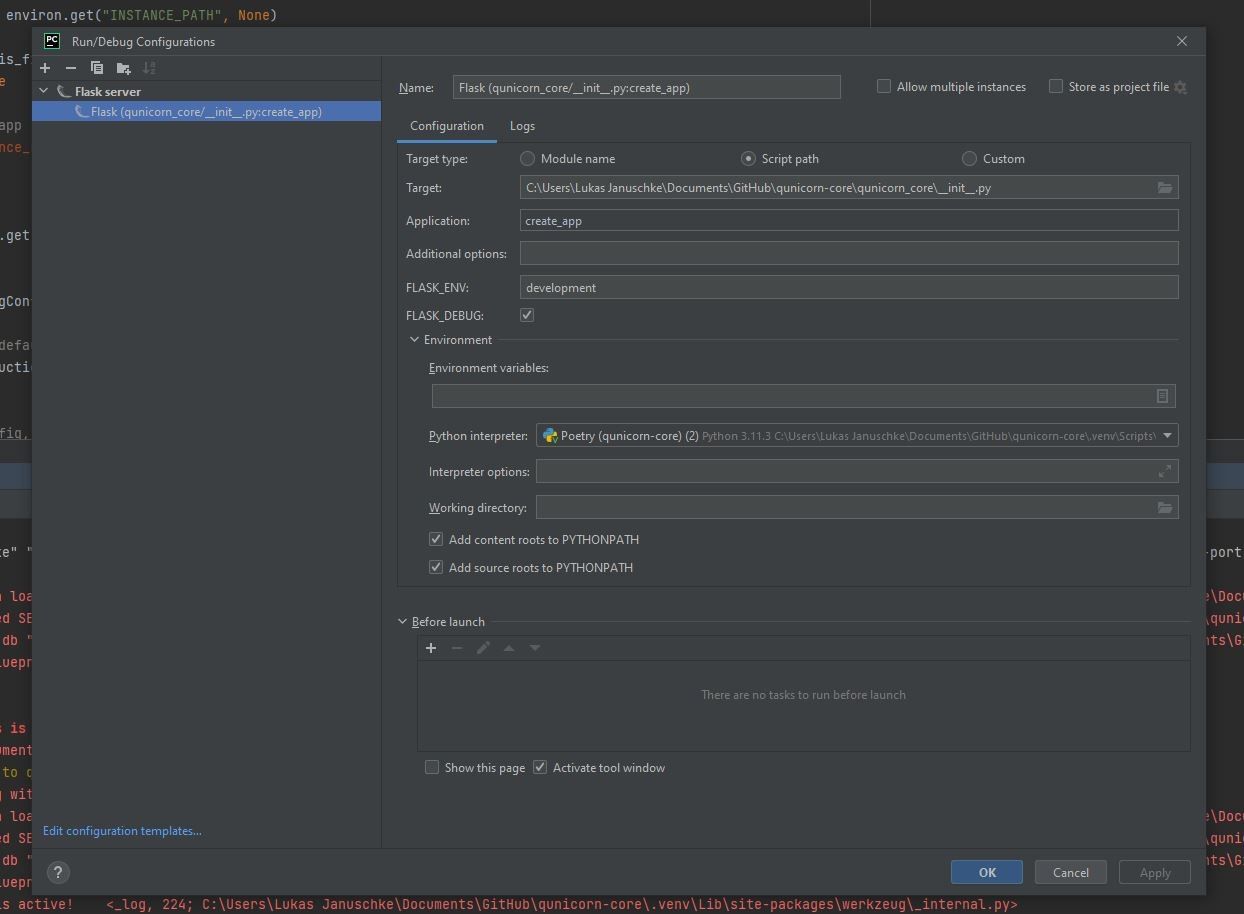
Run → Edit Configurations → Add the configuration parameters from the image
Configure Logger Terminal
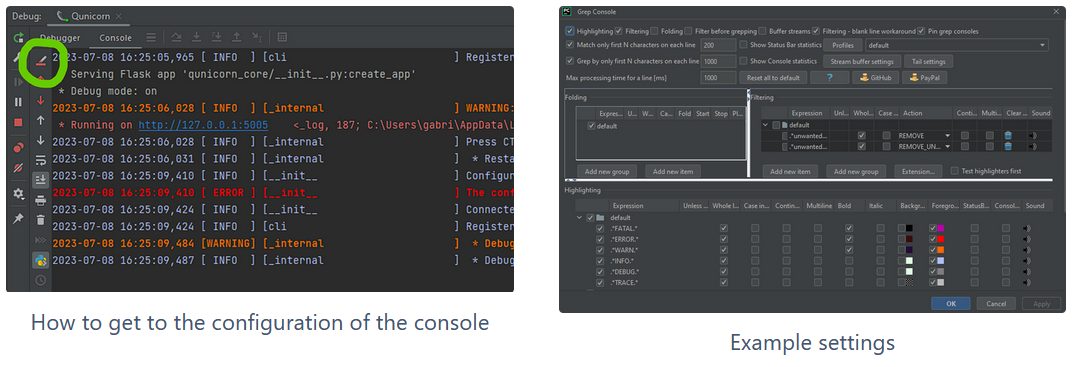
If you start the app using the configuration described above, all logs are displayed in red.
The Grep-Console plugin (in Pycharm) can be used to color the different logging types differently.
If this has been installed, the app can be started in debug mode, for example, and the different colors can then be adjusted in the Grep-Console settings
With “Rehighlight-Your-Console” the customization can be “tested” directly
How to open the database
Double-click on ./instance/qunicorn_core.db to automatically configure a database connection that can be searched and manipulated
How to open the database
Double-click on ./instance/qunicorn_core.db to automatically configure a database connection that can be searched and manipulated
How to display the domain model of the database: rightclick at the database tab on main -> diagrams -> show diagrams
How to check if the pipeline will succeed
poetry run invoke check-linting
If black fails fix it with: poetry run black .
If flake8 fails fix it with: poetry run flake8
poetry run pytest ./tests/automated_tests/
How to test the user authentication
Checkout the Keycloak documentation under Keycloak Authentication
How to write documentation
Use Read the docs for that: Read The Docs Documentation
Other useful commands
To add some flask or invoke commands checkout the documentation: Useful Commands